> ## Documentation Index
> Fetch the complete documentation index at: https://docs.nearplay.app/llms.txt
> Use this file to discover all available pages before exploring further.
# Publish Template
> Share your smart contracts with the community by publishing them as templates in the Template Marketplace
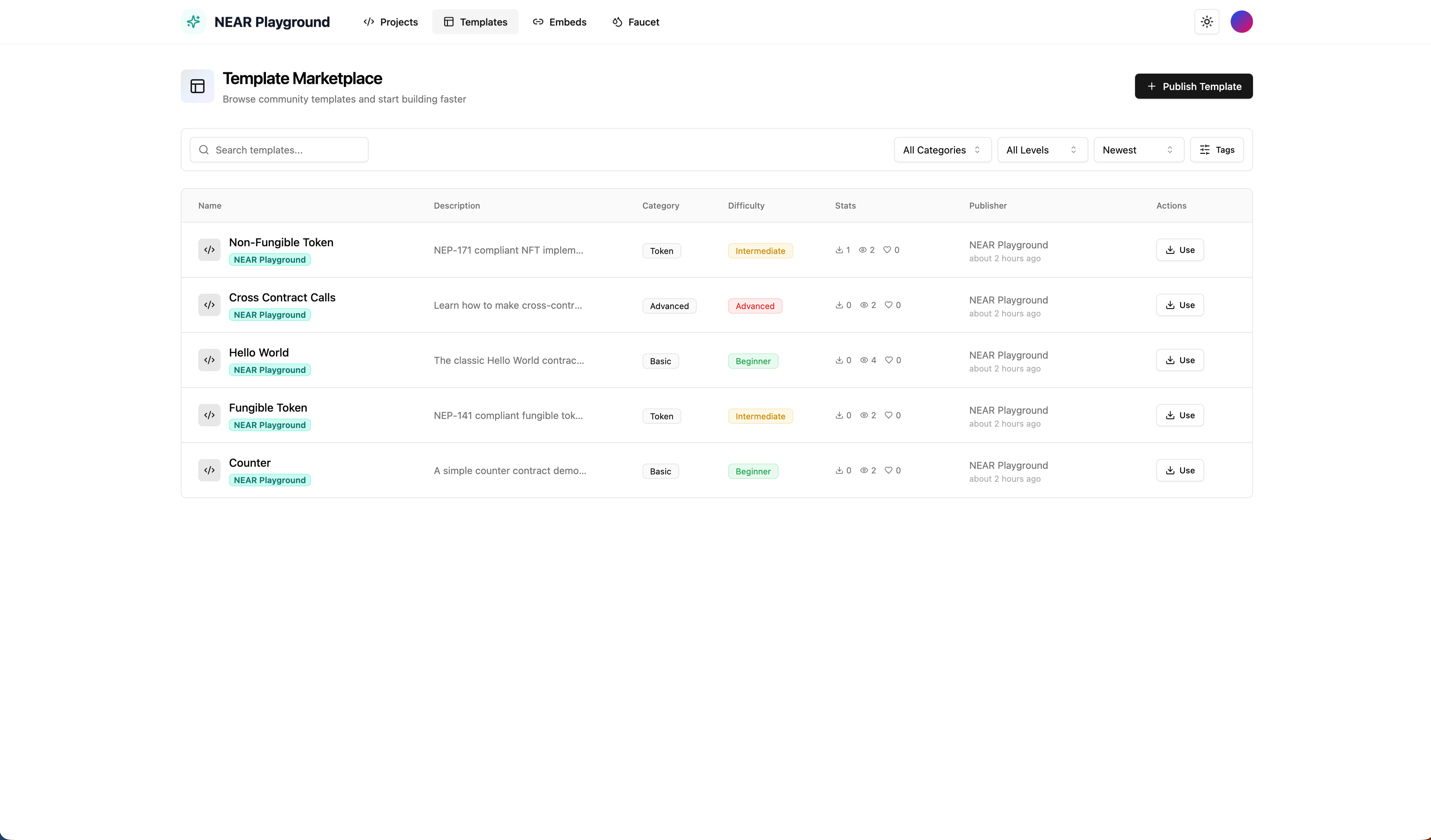
## Template Marketplace
The Template Marketplace displays all available templates in a searchable table. Each template shows:
| Column | Description |
| --------------- | ---------------------------------------------------- |
| **Name** | Template name and publisher |
| **Description** | Brief explanation of what the contract does |
| **Category** | Type of contract (Basic, Token, Advanced, etc.) |
| **Difficulty** | Skill level (Beginner, Intermediate, Advanced) |
| **Stats** | Downloads, views, and likes |
| **Publisher** | Who created the template |
| **Actions** | Use button to create a new project from the template |
Use the filters to find templates by category, difficulty level, or search by name.
 ## Publishing a Template
Click the **Publish Template** button in the top right of the Templates page. You can publish from two sources:
### From My Project
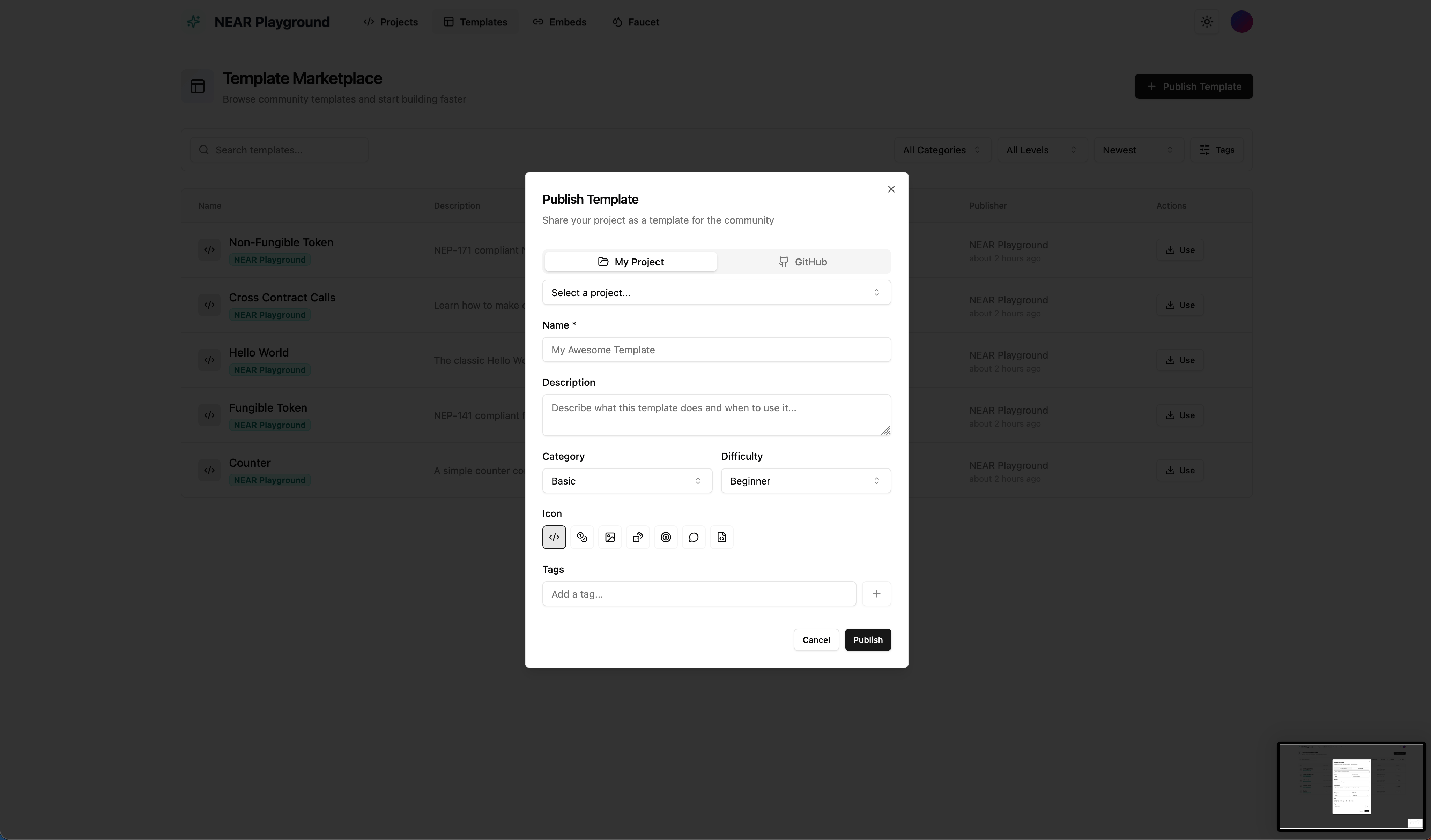
Publish an existing project from your workspace:
1. Go to the **Templates** page
2. Click **Publish Template**
3. Select the **My Project** tab
4. Choose your project from the dropdown
5. Fill in the template details
6. Click **Publish**
## Publishing a Template
Click the **Publish Template** button in the top right of the Templates page. You can publish from two sources:
### From My Project
Publish an existing project from your workspace:
1. Go to the **Templates** page
2. Click **Publish Template**
3. Select the **My Project** tab
4. Choose your project from the dropdown
5. Fill in the template details
6. Click **Publish**
 ### From GitHub
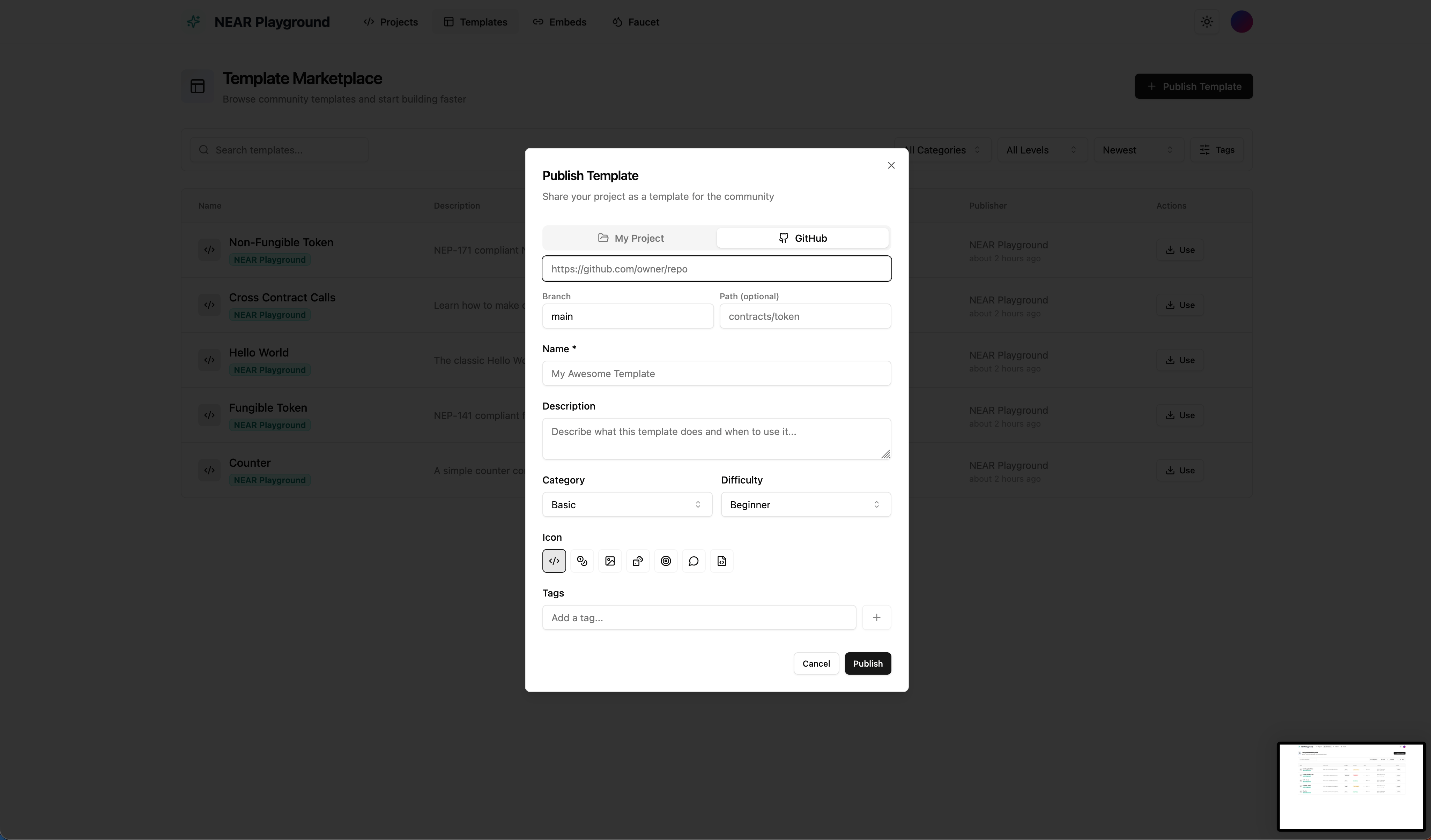
Import and publish directly from a GitHub repository:
1. Go to the **Templates** page
2. Click **Publish Template**
3. Select the **GitHub** tab
4. Enter the repository URL (e.g., `https://github.com/owner/repo`)
5. Specify the branch (default: `main`)
6. Optionally set a path if the contract is in a subdirectory (e.g., `contracts/token`)
7. Fill in the template details
8. Click **Publish**
### From GitHub
Import and publish directly from a GitHub repository:
1. Go to the **Templates** page
2. Click **Publish Template**
3. Select the **GitHub** tab
4. Enter the repository URL (e.g., `https://github.com/owner/repo`)
5. Specify the branch (default: `main`)
6. Optionally set a path if the contract is in a subdirectory (e.g., `contracts/token`)
7. Fill in the template details
8. Click **Publish**
 ## Template Fields
| Field | Description |
| --------------- | ------------------------------------------------------- |
| **Name** | Display name for your template |
| **Description** | Explain what the contract does and when to use it |
| **Category** | Select a category (Basic, Token, Advanced, etc.) |
| **Difficulty** | Skill level required (Beginner, Intermediate, Advanced) |
| **Icon** | Choose an icon to represent your template |
| **Tags** | Add searchable tags to help users find your template |
## Guidelines
For a good template:
* Include helpful comments explaining key parts of your code
* Use clear, descriptive variable and function names
* Ensure the code compiles successfully
* Document any required setup or configuration
* Add meaningful tags for discoverability
## Template Fields
| Field | Description |
| --------------- | ------------------------------------------------------- |
| **Name** | Display name for your template |
| **Description** | Explain what the contract does and when to use it |
| **Category** | Select a category (Basic, Token, Advanced, etc.) |
| **Difficulty** | Skill level required (Beginner, Intermediate, Advanced) |
| **Icon** | Choose an icon to represent your template |
| **Tags** | Add searchable tags to help users find your template |
## Guidelines
For a good template:
* Include helpful comments explaining key parts of your code
* Use clear, descriptive variable and function names
* Ensure the code compiles successfully
* Document any required setup or configuration
* Add meaningful tags for discoverability