> ## Documentation Index
> Fetch the complete documentation index at: https://docs.nearplay.app/llms.txt
> Use this file to discover all available pages before exploring further.
# Test Contracts
> Write and run unit tests for your smart contracts
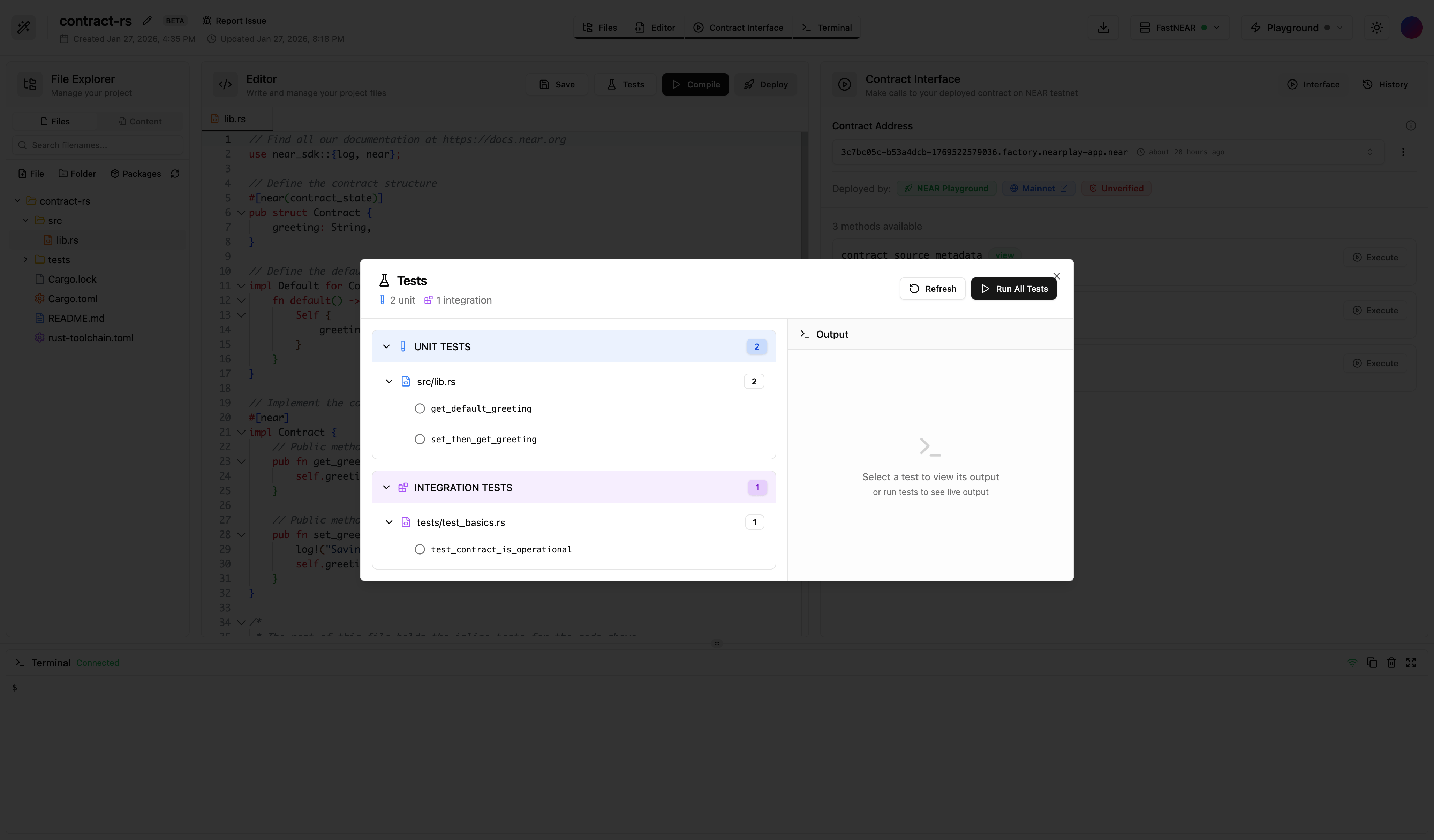
NEAR Playground includes a built-in test runner that discovers and executes your Rust tests directly in the browser.
## Test Runner Interface
The test runner opens in a dedicated modal with two panels:
* **Left Panel** - Displays discovered tests organized by file
* **Right Panel** - Shows live test output as tests execute
 ## Writing Tests
Add unit tests using the standard `#[test]` attribute:
```rust theme={null}
#[cfg(test)]
mod tests {
use super::*;
#[test]
fn test_default_greeting() {
let contract = Contract::default();
assert_eq!(contract.get_greeting(), "Hello");
}
#[test]
fn test_set_greeting() {
let mut contract = Contract::default();
contract.set_greeting("Hi".to_string());
assert_eq!(contract.get_greeting(), "Hi");
}
}
```
## Running Tests
1. Click the **Tests** button in the editor toolbar
2. The Tests Modal opens showing all discovered tests
3. Click **Run All Tests** to execute all tests, or click on individual tests to run them separately
4. Watch the live output stream in the right panel
5. View pass/fail status indicators next to each test
## Test Results
After tests complete, you'll see:
| Indicator | Meaning |
| --------------- | ------------ |
| Green checkmark | Test passed |
| Red X | Test failed |
| Spinner | Test running |
Each test shows its execution time, and you can click on any test to see its specific output.
## Features
* **Automatic Discovery** - Tests are found by scanning for `#[test]` attributes
* **Live Streaming** - Output appears in real-time as tests run
* **Per-Test Execution** - Run all tests or select individual tests
* **Copy Output** - Copy test results to clipboard
## Tips
* Keep tests small and focused on one behavior
* Use descriptive test names that explain what's being tested
* Test both success cases and error cases
* Use `assert!`, `assert_eq!`, and `assert_ne!` macros
## Writing Tests
Add unit tests using the standard `#[test]` attribute:
```rust theme={null}
#[cfg(test)]
mod tests {
use super::*;
#[test]
fn test_default_greeting() {
let contract = Contract::default();
assert_eq!(contract.get_greeting(), "Hello");
}
#[test]
fn test_set_greeting() {
let mut contract = Contract::default();
contract.set_greeting("Hi".to_string());
assert_eq!(contract.get_greeting(), "Hi");
}
}
```
## Running Tests
1. Click the **Tests** button in the editor toolbar
2. The Tests Modal opens showing all discovered tests
3. Click **Run All Tests** to execute all tests, or click on individual tests to run them separately
4. Watch the live output stream in the right panel
5. View pass/fail status indicators next to each test
## Test Results
After tests complete, you'll see:
| Indicator | Meaning |
| --------------- | ------------ |
| Green checkmark | Test passed |
| Red X | Test failed |
| Spinner | Test running |
Each test shows its execution time, and you can click on any test to see its specific output.
## Features
* **Automatic Discovery** - Tests are found by scanning for `#[test]` attributes
* **Live Streaming** - Output appears in real-time as tests run
* **Per-Test Execution** - Run all tests or select individual tests
* **Copy Output** - Copy test results to clipboard
## Tips
* Keep tests small and focused on one behavior
* Use descriptive test names that explain what's being tested
* Test both success cases and error cases
* Use `assert!`, `assert_eq!`, and `assert_ne!` macros