- GitHub READMEs - Let users try your contract without cloning the repo
- Documentation - Add interactive examples to your tutorials
- Blog posts - Embed runnable code samples in your articles
- Learning resources - Provide instant access to example contracts
- Project showcases - Let visitors explore your smart contracts live
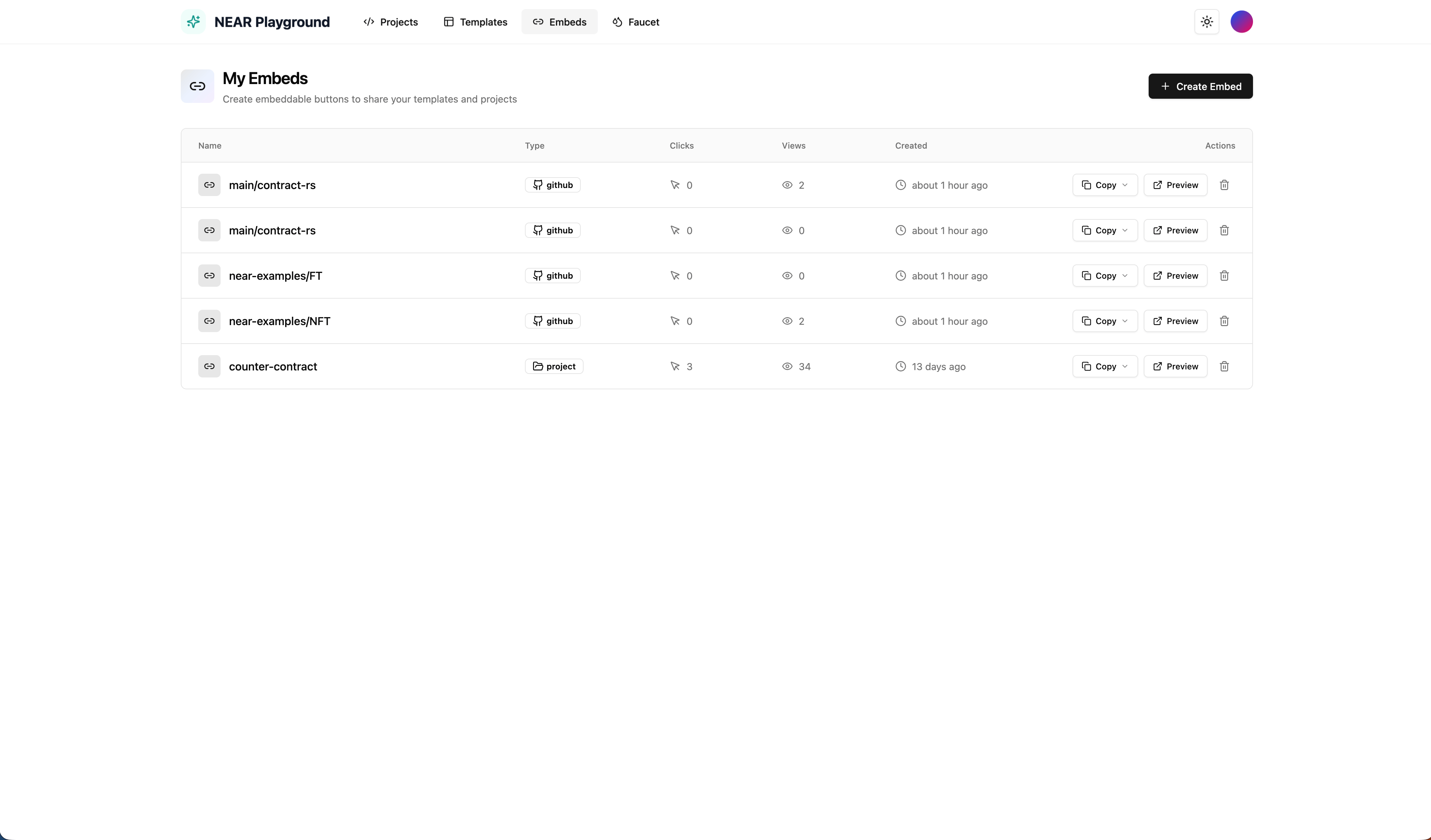
My Embeds
The Embeds page displays all your created embed buttons in a table:| Column | Description |
|---|---|
| Name | Embed name |
| Type | Source type badge (github or project) |
| Clicks | Number of times the button was clicked |
| Views | Number of times the button was viewed |
| Created | When the embed was created |
| Actions | Copy code, Preview, or Delete |
Creating an Embed
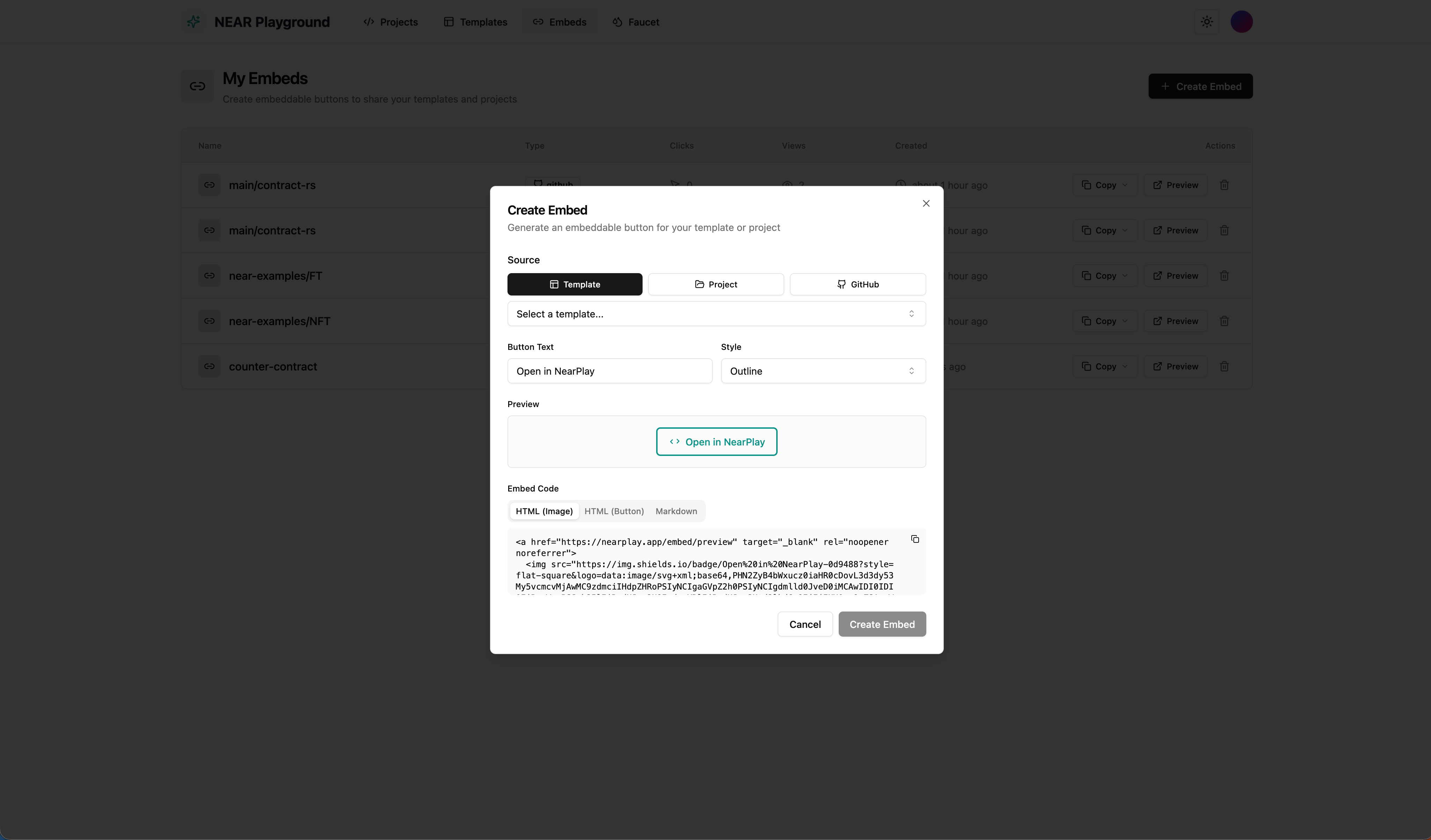
Click the Create Embed button to open the creation modal. You can create embeds from three sources:From Template
Create an embed for a template in the marketplace:- Go to the Embeds page
- Click Create Embed
- Select the Template tab
- Choose a template from the dropdown
- Customize the button text and style
- Preview the button appearance
- Copy the embed code
- Click Create Embed
From Project
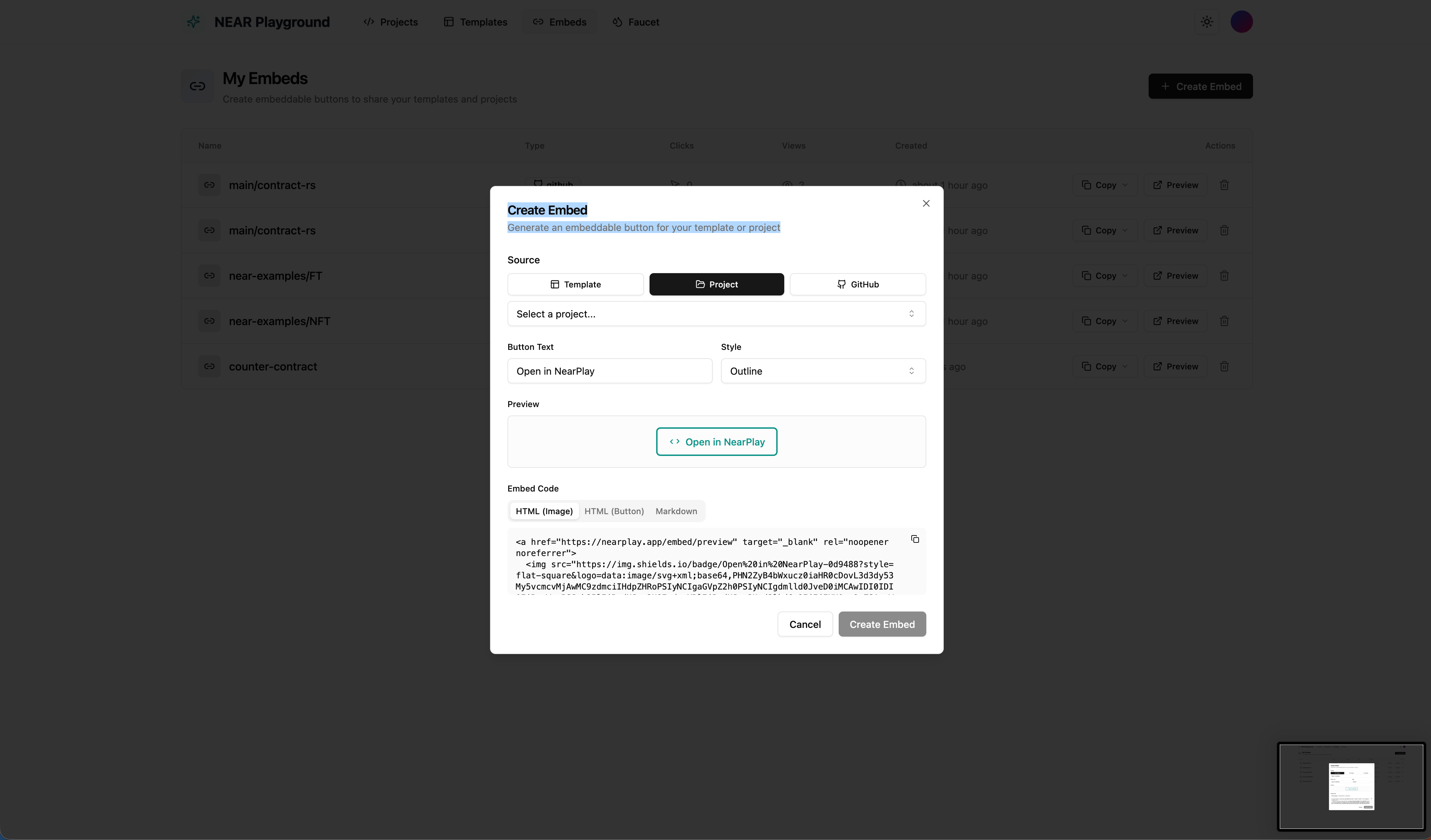
Create an embed for one of your projects:- Go to the Embeds page
- Click Create Embed
- Select the Project tab
- Choose your project from the dropdown
- Customize and copy the embed code
- Click Create Embed
From GitHub
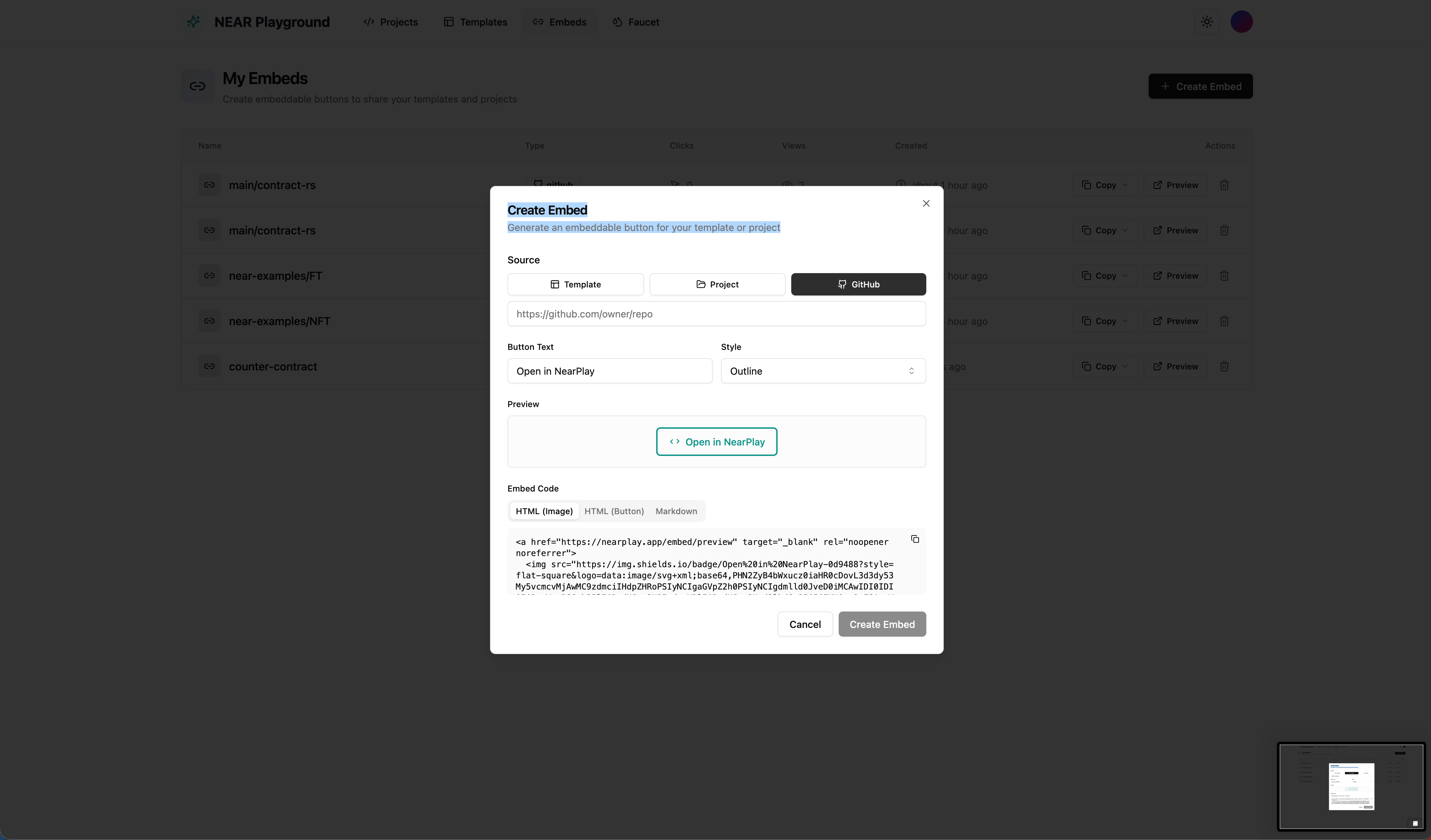
Create an embed directly from a GitHub repository:- Go to the Embeds page
- Click Create Embed
- Select the GitHub tab
- Enter the repository URL (e.g.,
https://github.com/owner/repo) - Customize and copy the embed code
- Click Create Embed
Customization Options
| Option | Description |
|---|---|
| Button Text | Custom text displayed on the button (default: “Open in NearPlay”) |
| Style | Button appearance style (Outline, Filled, etc.) |
Embed Code Formats
The embed code is available in three formats:| Format | Best For |
|---|---|
| HTML (Image) | Shield.io badge - works everywhere |
| HTML (Button) | Styled HTML button |
| Markdown | GitHub READMEs and documentation |